Every Windows server.
One colour-coded hub.
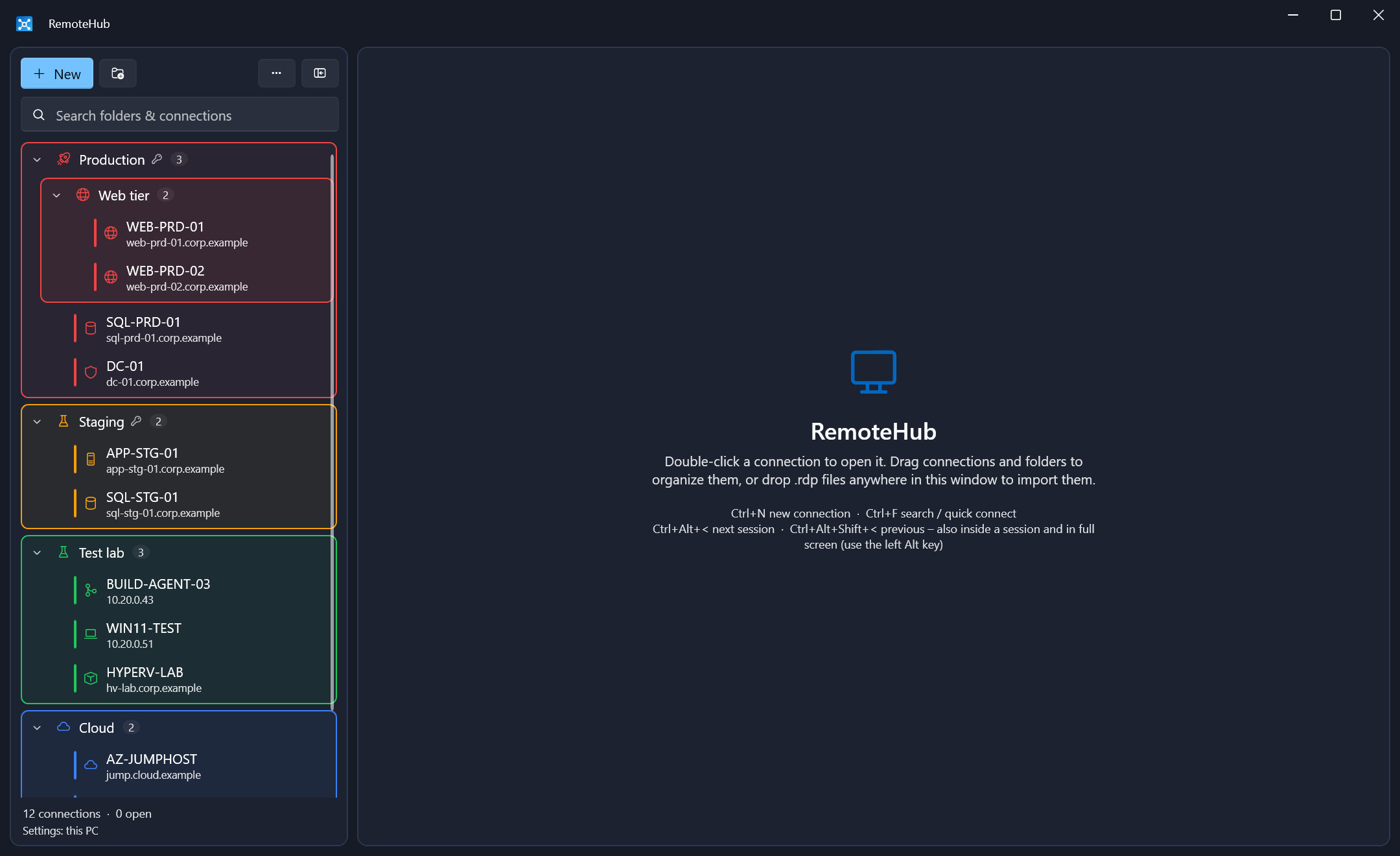
RemoteHub puts Remote Desktop, a PowerShell console, file transfer, registry, services and processes into one modern Windows app – organised in folders that pass credentials, settings and colours down to every connection inside.
Stop juggling six consoles per server.
Remote Desktop for one thing, a PowerShell window for another, an Explorer share for files, regedit, services.msc and Task Manager on top. RemoteHub opens all of them as tabs of the same connection – with the credentials you already set.
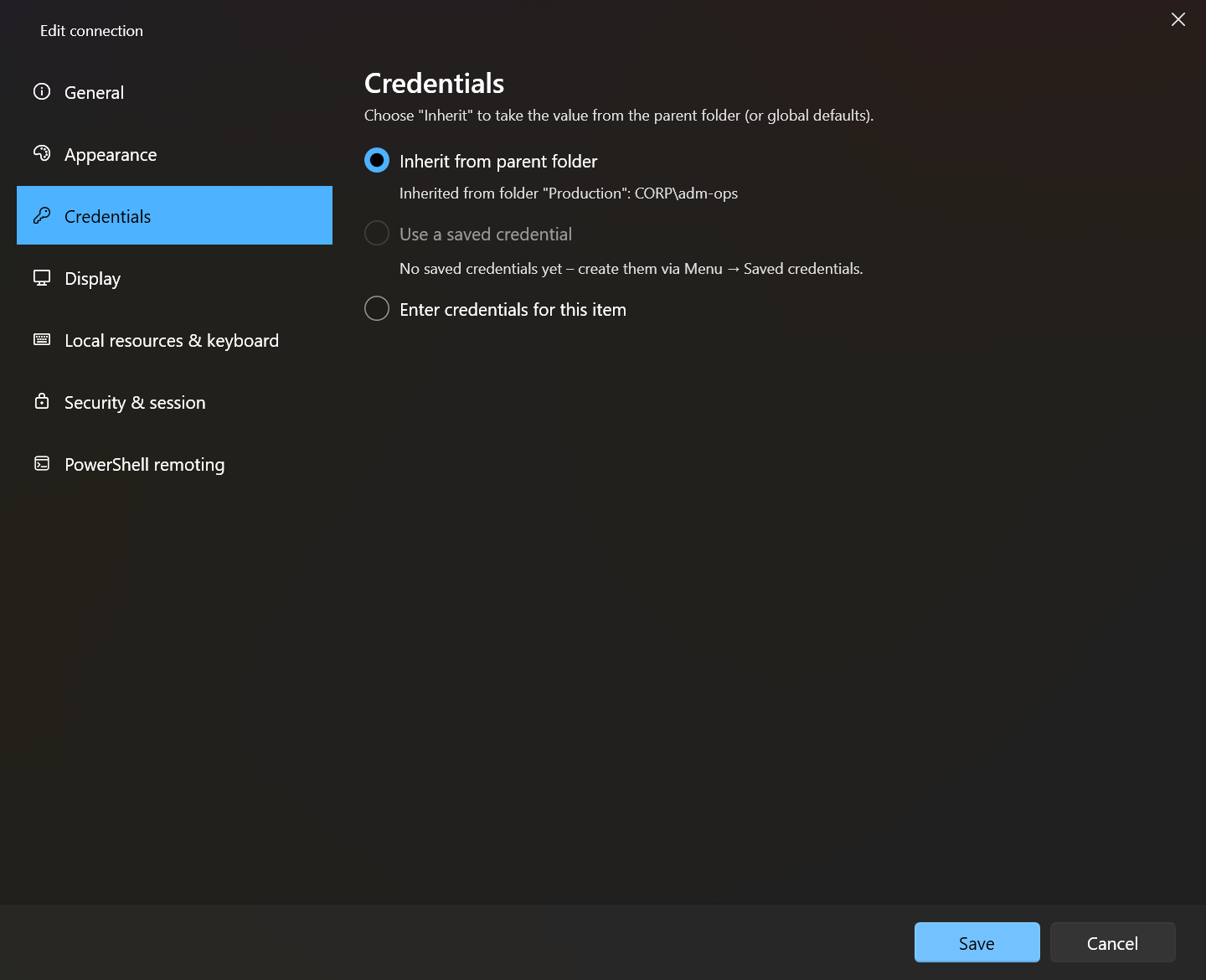
Set it once on the folder. Every server inside follows.
Credentials and every RDP setting can live on a folder. Sub-folders and connections inherit them – or override a single value. The editor always shows what the parent would give, so you never guess where a setting comes from.
- One credential for a whole environment. Change the Production password once; every server under it uses the new one.
- Saved credentials can be referenced by any folder or connection – edit one, update them all.
- Local accounts on standalone servers with
.\admin– one folder credential covers many non-domain machines. - Safe drag & drop. Moving an item so its credentials would change asks first and shows old and new source.
Know at a glance you're on production.
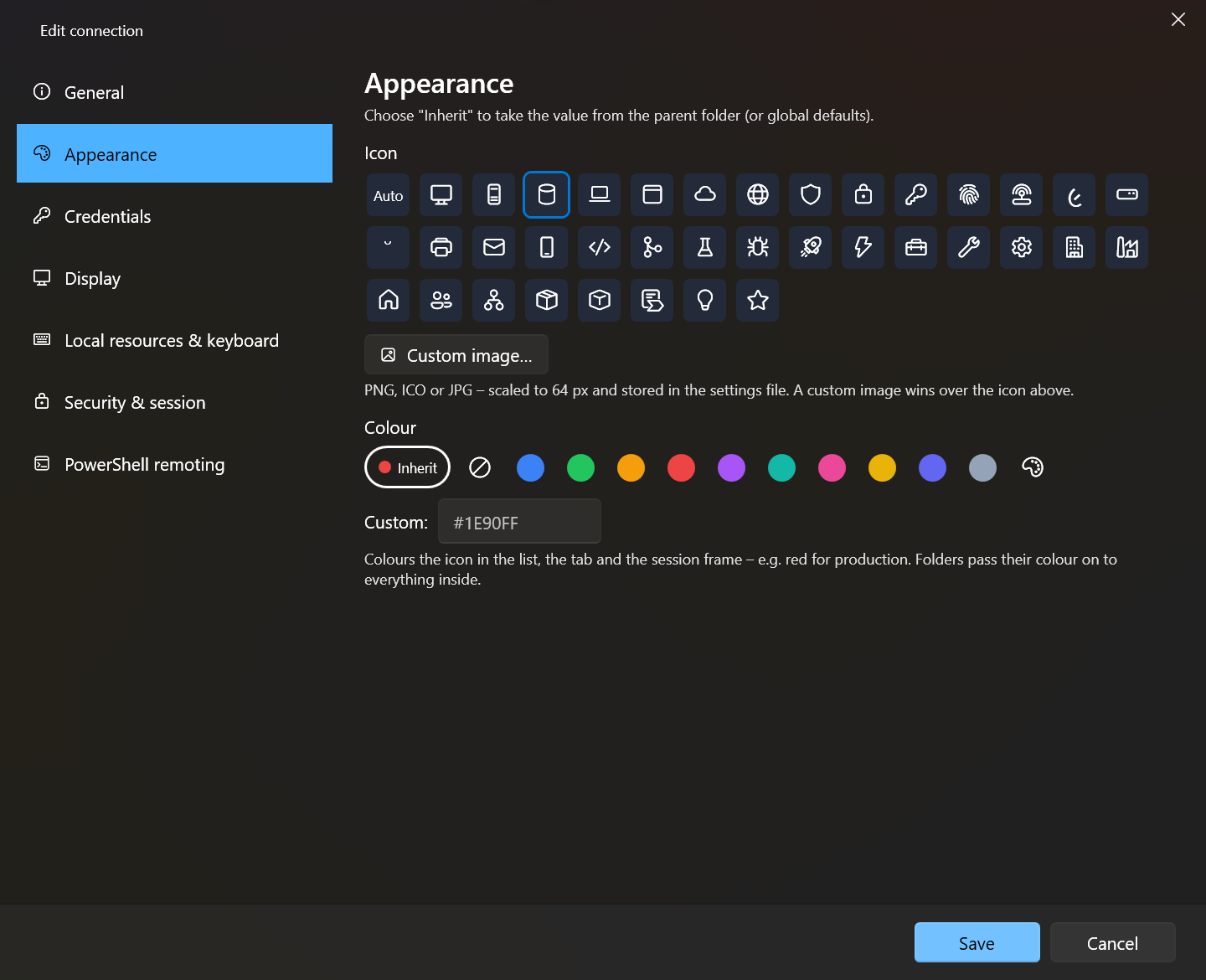
Give a folder a colour and everything inside carries it – the icon in the list, the tab and the frame around the session. Pick one of ~35 built-in icons or your own image. A red frame around a desktop is hard to miss before you reboot the wrong box.
- Palette or custom
#RRGGBB, inherited from the folder like every other setting. - Clear separation from other windows: solid tinted chrome, an accent window border and the session name in the taskbar.
- Status at a glance: the same dot colours in the tree and on every tab.
Tabs grouped by server, not by tool.
One tab per connection. Open PowerShell or the registry next to a desktop and a second row appears with that server's tools – each with its own status dot. Switch sessions without leaving the keyboard, even from inside a full-screen session.
- Native Microsoft RDP client (
mstscax.dll) with dynamic resolution, smart sizing and multi-monitor. - Reconnect, Ctrl+Alt+Del, full screen, detach into its own window and dock back.
- Clipboard and Windows keys forwarded to the session (Win, Alt+Tab), per connection.
- The frame lights up in the session colour while the keyboard goes to the remote machine.
 RemoteHub – SQL-PRD-01– ▢ ✕
Illustration of the tab layout. The remote desktop itself is rendered by the Windows RDP client.
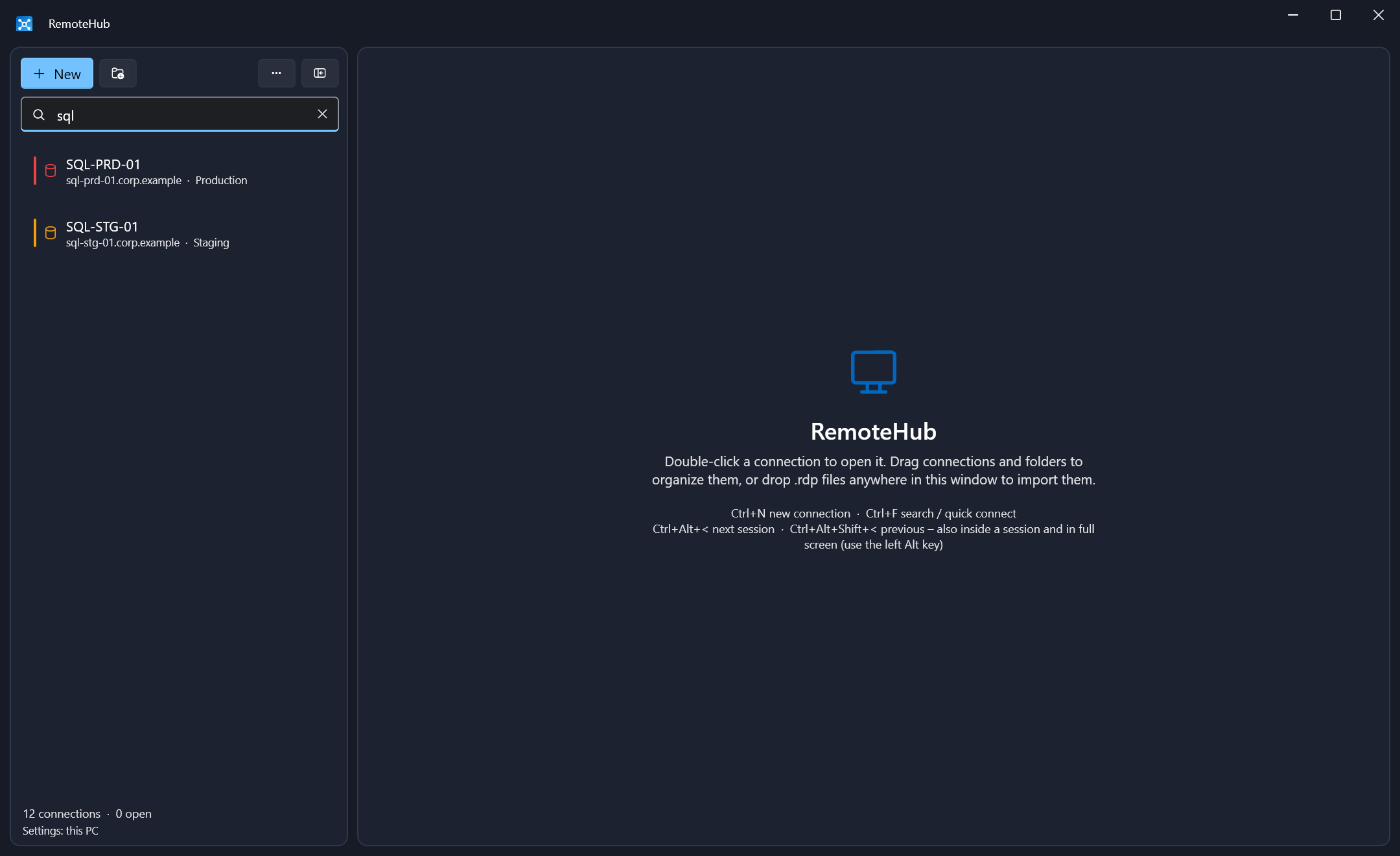
Ctrl+F. Type. Enter. Connected.
Find folders and connections by name, host, notes or folder path. Several words narrow the results – prod sql. If nothing matches, Enter quick-connects to the computer name you typed.
- Results show where they live – the folder path and the colour of their environment.
- Drop
.rdpfiles anywhere in the window to import them, or export folders back to.rdpwith the effective settings. - Single instance: opening an
.rdpfile reuses an existing entry for the same server.
Right-click a server. Get the whole toolbox.
Over PowerShell remoting (or the RemoteHub Agent), every connection gets a console, file transfer, registry editor, services and processes – using the same credentials as its desktop session. Only what you look at is loaded; nothing scans in the background.
PS C:\Users\adm-ops> Get-Service MSSQLSERVER, SQLSERVERAGENT | Select Name, Status, StartType

Name           Status  StartType
----           ------  ---------
MSSQLSERVER    Running Automatic
SQLSERVERAGENT Running Automatic

PS C:\Users\adm-ops> $disk = Get-Volume -DriveLetter D
PS C:\Users\adm-ops> if ($disk.SizeRemaining -lt 50GB) { Write-Warning "Low space on D:" }
WARNING: Low space on D:
PS C:\Users\adm-ops> # Tab completion runs on the remote computer
PS C:\Users\adm-ops> Get-Ev
A real remote console – coloured like PSReadLine
Output is formatted on the remote computer, with colours for Write-Host, warnings and errors. The input line is colour-coded as you type.
- Tab completion uses the target's own
TabExpansion2– works with Windows PowerShell 5.1 and PowerShell 7. - History, Ctrl+C, cls; Read-Host and prompts on the input line, passwords in a dialog.
- Drop files on the console to upload them into its current folder.
This PC
WEB-PRD-01
File transfers
Drag & drop between this PC and the server
A split view with your PC on the left and the remote computer on the right. Drop files from Explorer, onto a folder row, or use the arrow buttons. Folders transfer with their contents.
- Verified: 1 MB chunks, SHA-256 compared with the source before the file gets its final name.
- No half-files: cancelled or failed transfers remove the partial file.
- Address bars on both sides – variables like
%TEMP%expand on the computer they belong to.
| Name | Type | Data |
|---|---|---|
| (Default) | REG_SZ | (value not set) |
| InstallDir | REG_EXPAND_SZ | %ProgramFiles%\Acme\AppServer |
| MaxWorkers | REG_DWORD | 0x00000010 (16) |
| Endpoints | REG_MULTI_SZ | https://api-stg … (2) |
| CacheSizeBytes | REG_QWORD | 0x0000000040000000 |
| Thumbprint | REG_BINARY | 3F A1 0C 9E 52 … |
| Version | REG_SZ | 4.2.1 |
regedit, for the remote machine
Keys on the left, values on the right. Paste any path – HKLM\…, HKLM:\…, Registry::… or regedit's Computer\… – and the tree expands to it.
- Edit every type: DWORD/QWORD in hex or decimal, multi-string, binary, expandable strings kept unexpanded.
- Real renames with permissions kept, and Export… any key as a
.regfile. - Guard rails: deletes always ask, hives can't be removed, value data is never logged.
| Name | Status | Startup type | Service name | PID | |
|---|---|---|---|---|---|
| SQL Server (MSSQLSERVER) | Running | Automatic | MSSQLSERVER | NT Service\MSSQLSERVER | 3112 |
| SQL Server Agent (MSSQLSERVER) | Running | Automatic | SQLSERVERAGENT | NT Service\SQLSERVERAGENT | 4580 |
| SQL Server Browser | Stopped | Disabled | SQLBrowser | ||
| Windows Remote Management | Running | Automatic (delayed) | WinRM | 1288 | |
| Windows Update | Starting | Manual | wuauserv | 6024 | |
| Remote Desktop Services | Running | Manual | TermService | 1012 | |
| DNS Client | Running | Automatic | Dnscache | 1364 |
The Services console – without the MMC
Status dots, startup type, account, PID and description. Start, stop and restart from the toolbar; each action waits up to 60 s and tells you if the service didn't get there.
- Change startup type – Automatic, Delayed, Manual or Disabled.
- Sort and filter by any column; rows update in place so your selection stays.
- Refreshes while visible (default 60 s) – pause it per tab.
| Name | PID | CPU % | Working set | Private | User | Threads |
|---|---|---|---|---|---|---|
| w3wp.exe | 7716 | 23.4 | 1.21 GB | 1.38 GB | IIS APPPOOL\webapp | 64 |
| MsMpEng.exe | 3348 | 4.1 | 212 MB | 268 MB | SYSTEM | 41 |
| w3wp.exe | 8840 | 2.7 | 486 MB | 512 MB | IIS APPPOOL\api | 38 |
| svchost.exe | 1288 | 0.6 | 38 MB | 21 MB | NETWORK SERVICE | 12 |
| powershell.exe | 9102 | 0.3 | 92 MB | 71 MB | CORP\adm-ops | 19 |
| lsass.exe | 812 | 0.1 | 24 MB | 9 MB | SYSTEM | 10 |
| explorer.exe | 5520 | 0.0 | 118 MB | 64 MB | CORP\adm-ops | 72 |
Task Manager's details view – remote
Name, PID, CPU %, working set, private bytes, user, session, threads, handles, start time and full command line.
- End process (Del) or the whole tree (Shift+Del) – several at once, always with a confirmation.
- Protected: critical Windows processes (lsass, csrss, winlogon …) can't be ended from here.
- Live: CPU averaged between refreshes, every 15 s by default.
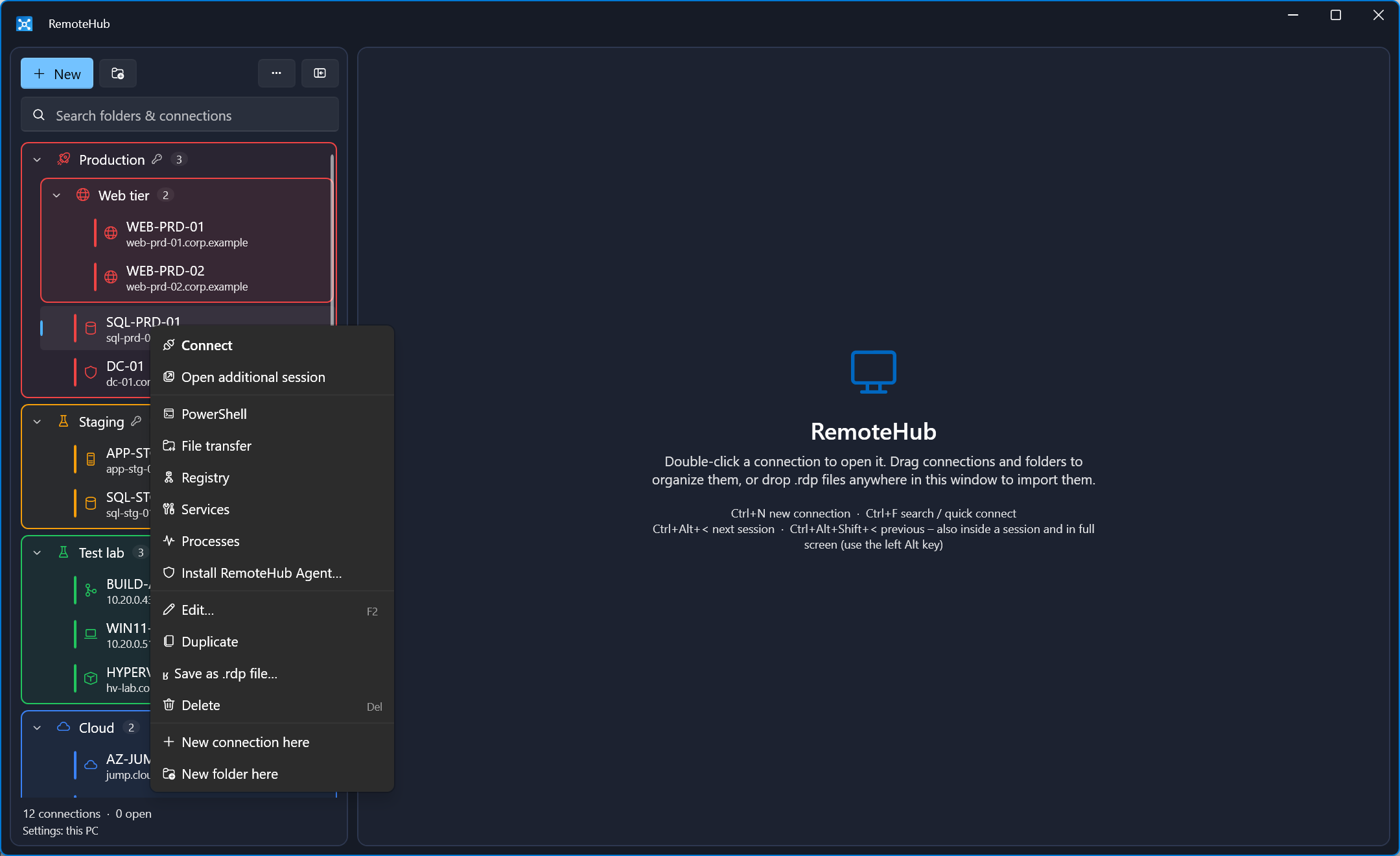
Everything is one right-click away
Once remoting is confirmed for a connection, its menu offers every tool. Not set up yet? Test PowerShell remoting tells you why – and Set up on the target… builds a ready-to-run, reviewable script.
- Firewall locked to your PC's addresses and an HTTPS listener with a per-target certificate.
- Dry-run mode and an undo list in the script header – RemoteHub never runs it for you.
Tool views above are illustrations in RemoteHub's own colours with sample data; “One menu” is a screenshot.
No WinRM? No problem.
For devices where PowerShell remoting isn't allowed, a small Windows service gives RemoteHub the same session over its own TLS connection. PowerShell, file transfer, registry, services and processes all work exactly as with remoting – WinRM can stay off.
Installs itself
Right-click → Install RemoteHub Agent… Silently over remoting when it works, otherwise through the RDP clipboard. Updates the same way.
Pinned identity
Each device gets its own certificate. RemoteHub stores only its SHA-256 fingerprint and stops before sending credentials on a mismatch.
Windows rules apply
Sign-in is a real network logon: lockout, "deny network access" and the Security log all apply. Admins only by default; brute force is throttled.
No domain trust needed
Use a local account (LAPS works) or one of the device's domain – your admin PC doesn't need to be in the same domain.
Tight footprint
A firewall rule limited to the agent program, its port and the addresses you allow. Uninstall removes rule, certificate and configuration.
Sends nothing
The agent has no telemetry and phones home to no one. Windows 10 1809 / Server 2019 or later with Windows PowerShell 5.1.
Your credentials never leave your control.
No cloud account and no RemoteHub server holding your secrets. Settings stay on your PC – or in a shared folder you choose, encrypted with a password only your team knows.
- This PC (default)
- Encrypted with Windows DPAPI for your account – only you on this PC can read it.
- Shared folder
- OneDrive or a network share: AES-256-GCM, PBKDF2-SHA256 with 600,000 iterations. Sync between your PCs or share with other admins; conflicts are never overwritten silently.
- Startup protection
- Optional password or Windows Hello (PIN, fingerprint, face) at every start – a random 256-bit key wraps everything, Hello keys kept in the TPM where available.
- Passwords to RDP
- Handed to the Microsoft RDP client in memory right before connecting – no clipboard involved.
- Backups
- Portable, password-protected
.rhbackupfiles – restore on any PC or account. - Verified updates
- Only a higher version, downloaded over HTTPS and checked against the announced SHA-256 and size before it installs.
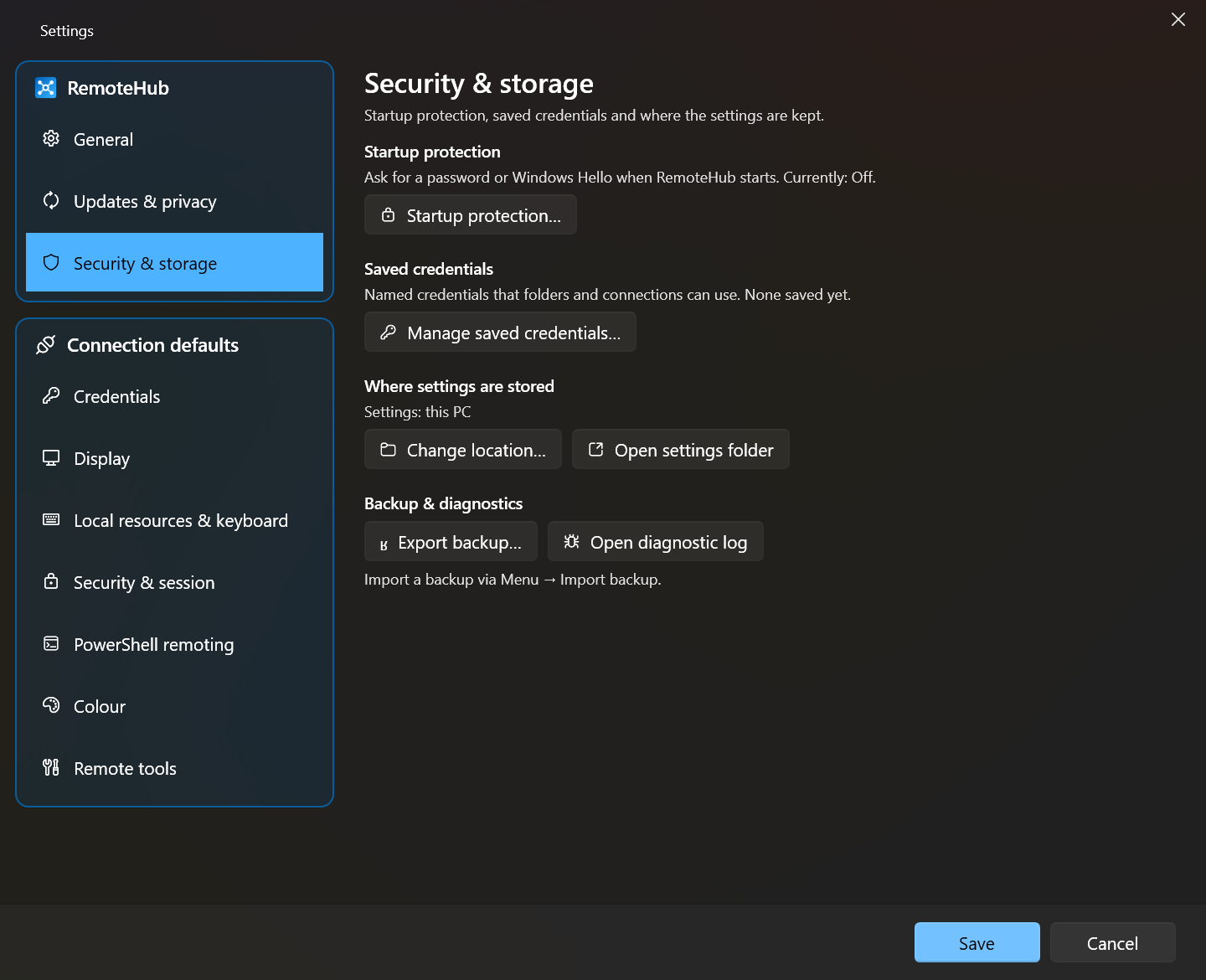
Windows Hello
Unlock with PIN, fingerprint or face.
Team sync
Share one encrypted file through OneDrive.
Deploy it like any other enterprise app.
A per-machine MSI that installs silently, upgrades in place and respects policy. Point every admin at the same encrypted settings folder with one registry value – via Intune or Group Policy.
- Self-contained – no .NET runtime to roll out first.
.rdpfiles registered under “Open with” without taking the default away from mstsc.- Settings overview with Copy as text for support – counts only, never passwords or user names.
| Policy value | Effect |
|---|---|
SettingsFolderREG_SZ / REG_EXPAND_SZ | Shared settings folder for all users, e.g. %OneDriveCommercial%\RemoteHub. Locked while set. |
DisableUpdateCheckDWORD 1 | Never contacts the update server – for updates through software deployment. |
UpdateChannelstable | beta | Fixes the update channel. |
DisableTelemetryDWORD 1 | No anonymous usage data or crash reports. |
Under HKLM or HKCU\SOFTWARE\Policies\RemoteHub – shown as “managed” in Settings.
Privacy you can read in one paragraph.
With usage data on, RemoteHub sends one tiny message per start: the event, version, update channel, Windows edition, processor type and a random install ID. Nothing about your connections, servers, credentials, user or computer names.
- Crash reports are redacted before they're stored – paths, names, hosts, IPs and e-mail addresses removed.
- One switch turns it off and deletes the install ID. IT can turn it off by policy.
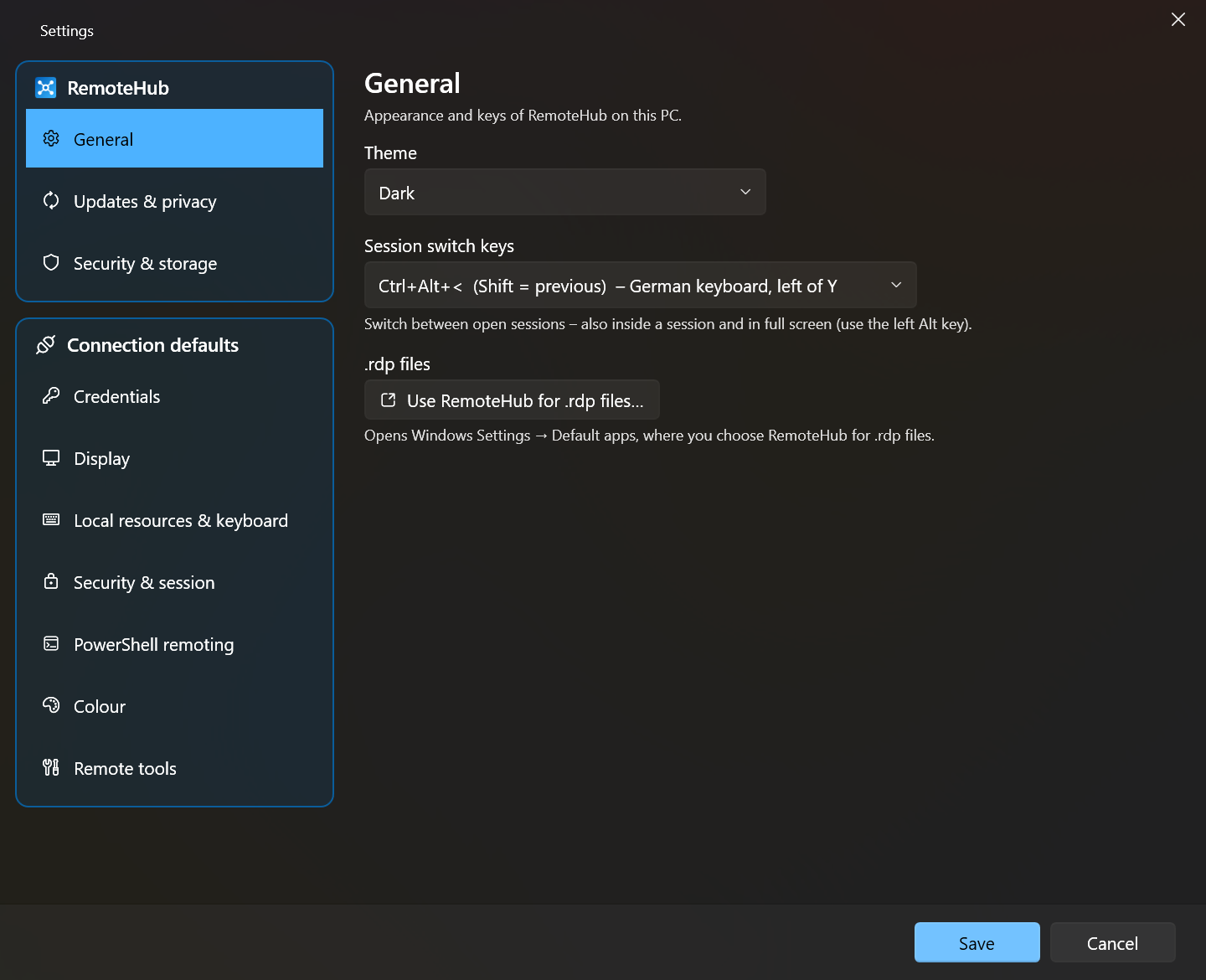
Hands stay on the keys.
Session switching works even while a remote session has focus – and in full screen.
Prefer other keys? Choose Ctrl+Alt+^, F1/F2, PageUp/PageDown or Left/Right under Settings → General.
Free. Open source. Yours to use anywhere.
No licence keys, no seat limits, no “community edition”. Use it at home, at work or for your customers – and read every line of code on GitHub.
- Download and installRun the MSI from the latest GitHub release. It adds a Start menu entry.
- Add or import connectionsCreate folders, or drop existing
.rdpfiles into the window. - Set credentials on a folderGive it a colour – everything inside inherits both.
- Right-click → Test PowerShell remotingUnlock the console, files, registry, services and processes.
Questions, answered.
Is RemoteHub really free for commercial use?
Yes. RemoteHub is open source and free for any usage – personal, commercial, in your company or for your customers. There are no paid tiers.
Does it replace mstsc?
It uses the same Microsoft Remote Desktop client that's built into Windows (mstscax.dll), so connections behave as you know them – but adds folders, inheritance, colours, tabs and the remote tools around it. mstsc stays installed and remains the default for .rdp files unless you choose RemoteHub.
What do the remote tools need on the server?
Either PowerShell remoting (WinRM, Enable-PSRemoting, port 5985 or 5986 with HTTPS) and an administrator or Remote Management Users account – or the RemoteHub Agent, which doesn't need WinRM at all. When a test fails, RemoteHub can generate a reviewable setup script for the target.
Where are my passwords stored?
On your PC, encrypted with Windows DPAPI – or, if you choose a shared folder, in a file encrypted with AES-256-GCM and a password. Optional startup protection adds a password or Windows Hello on top. Nothing is stored on a RemoteHub server.
Can my team share connections?
Yes. Put the settings file in OneDrive or on a network share; every admin enters the shared password once per PC. RemoteHub notices changes from other PCs and asks before reloading – nothing is overwritten silently. IT can preset the folder by policy.
Why does Windows SmartScreen warn when I download it?
RemoteHub is in pre-release (0.x) and the MSI isn't code-signed yet, so SmartScreen may show a warning for new downloads. The source and the build pipeline are public on GitHub.
Does RemoteHub send any data?
Only if anonymous usage data is on: one small message per start with version, channel, Windows edition, processor type and a random install ID, plus redacted crash reports. You can turn it off in Settings → Updates & privacy, and IT can disable it by policy. The RemoteHub Agent sends nothing.